
Fold Protractor
Turns iPhone Duo into a bevel gauge. Open the phone, set it into a corner or against two edges, and read the hinge angle.
Coming Oct 15 For iPhone Duo and every iPhone. Coming Thu Oct 15.
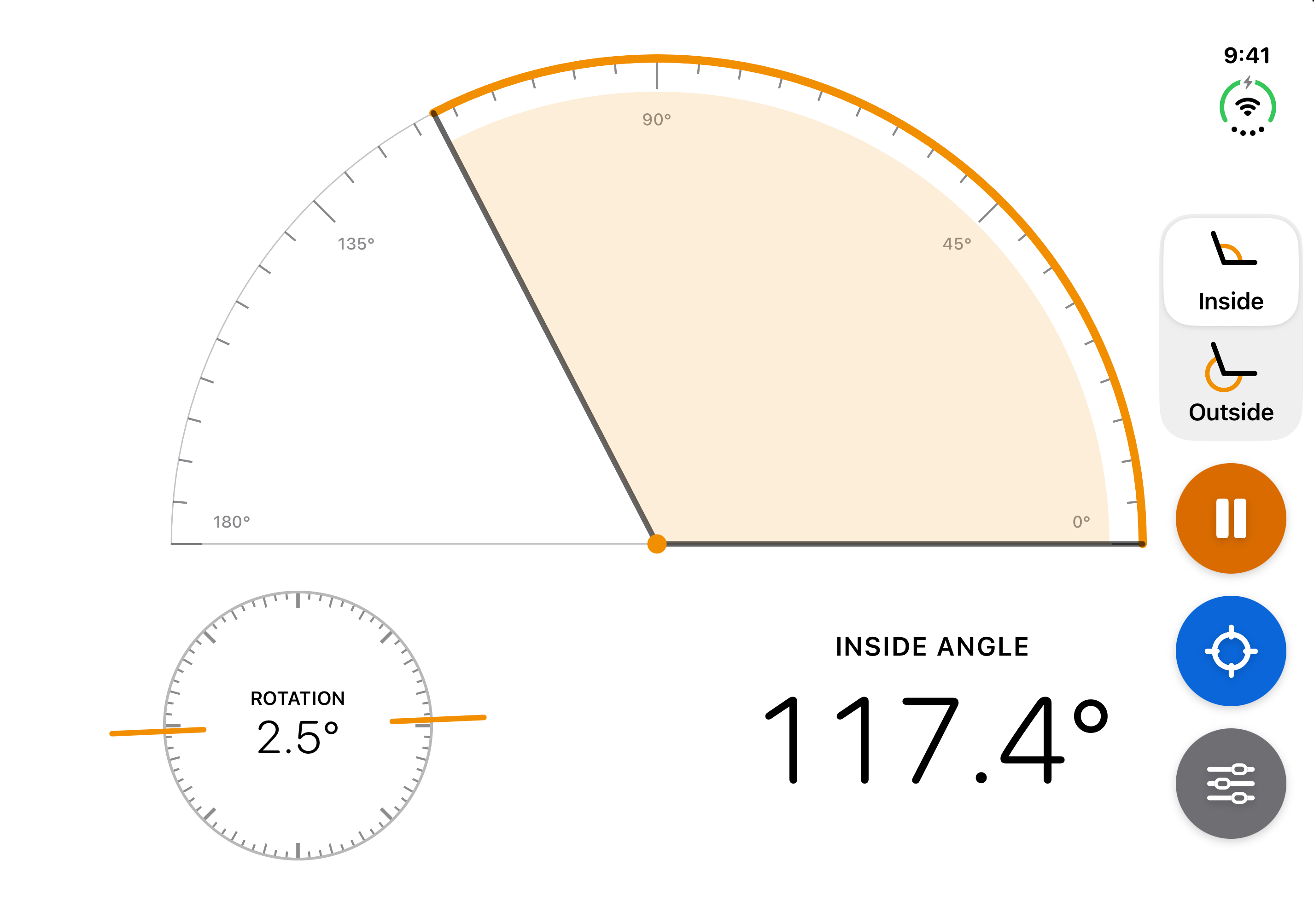
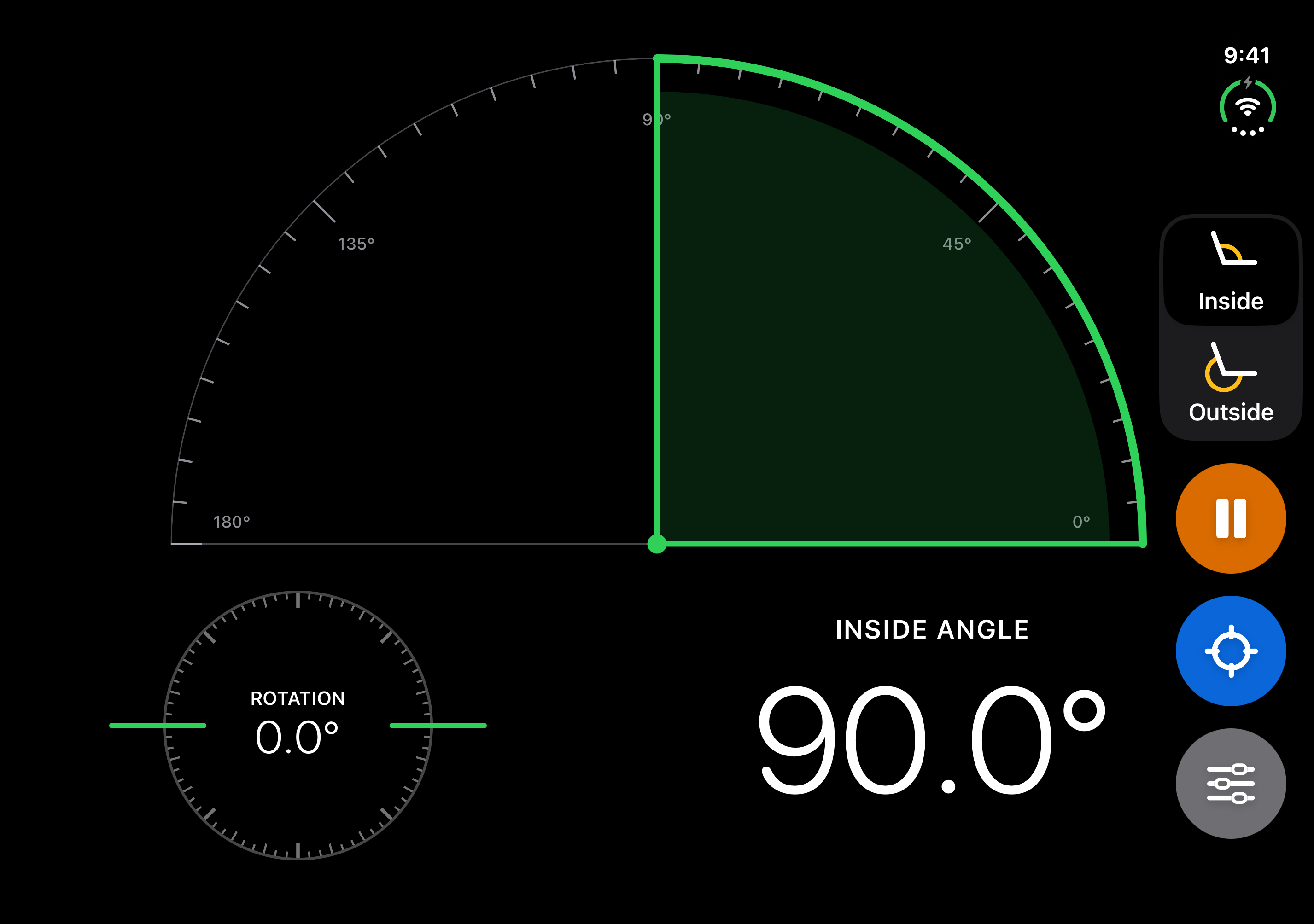
A hinge gauge
Fold Protractor reads the Duo’s hinge angle with the hinge API in iOS 27.1. A protractor dial pivots on the fold.
- Right of the fold. On the open Duo, the reading and controls sit on the right half, the half that stays sharp while the phone folds. The controls stand in a column at the right edge.
- Small level. A small level on the left half shows if the phone itself is level.
- Inside or outside. Read the angle between the screens, or the angle around the backs.
- Hold. Freeze the reading, then lift the phone away to read it.
- Calibrate. Set the reading at flat (180°) or in a square corner (90°).
- Haptic ticks. A tick as the angle crosses 45°, 90°, 135° and 180°.
- Fold marks. The dial turns green at 45°, 90°, 135° and 180°.
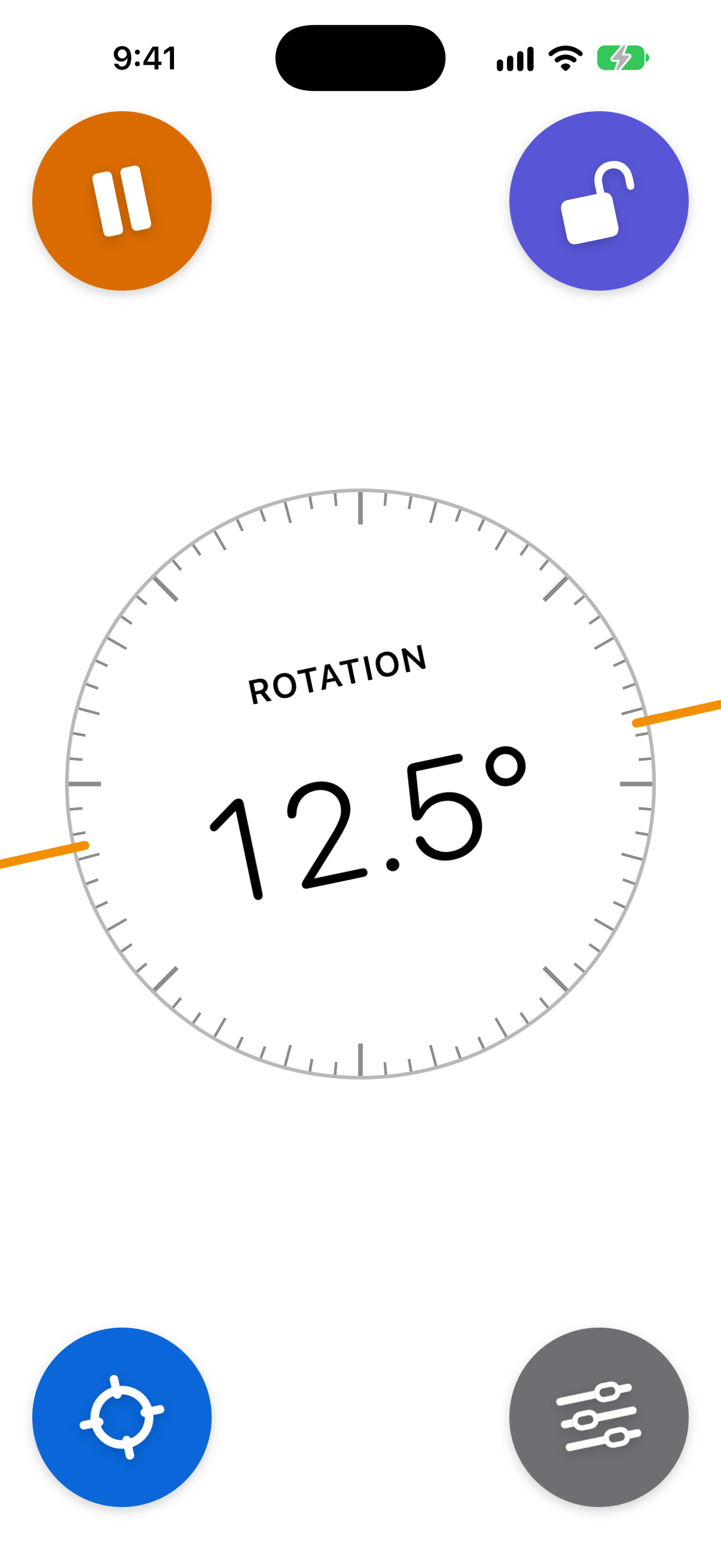
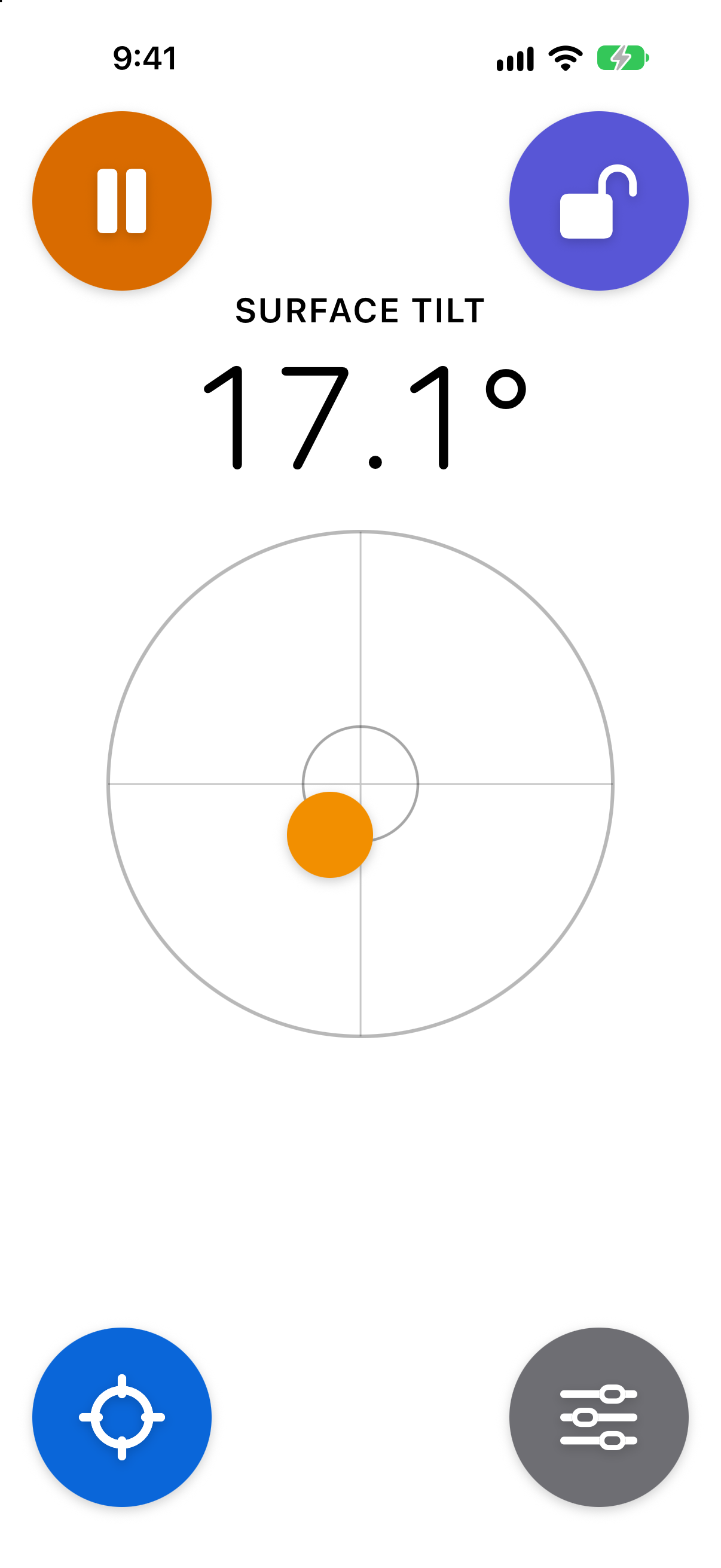
A level
On every other iPhone, and on a folded Duo, Fold Protractor works as a level.
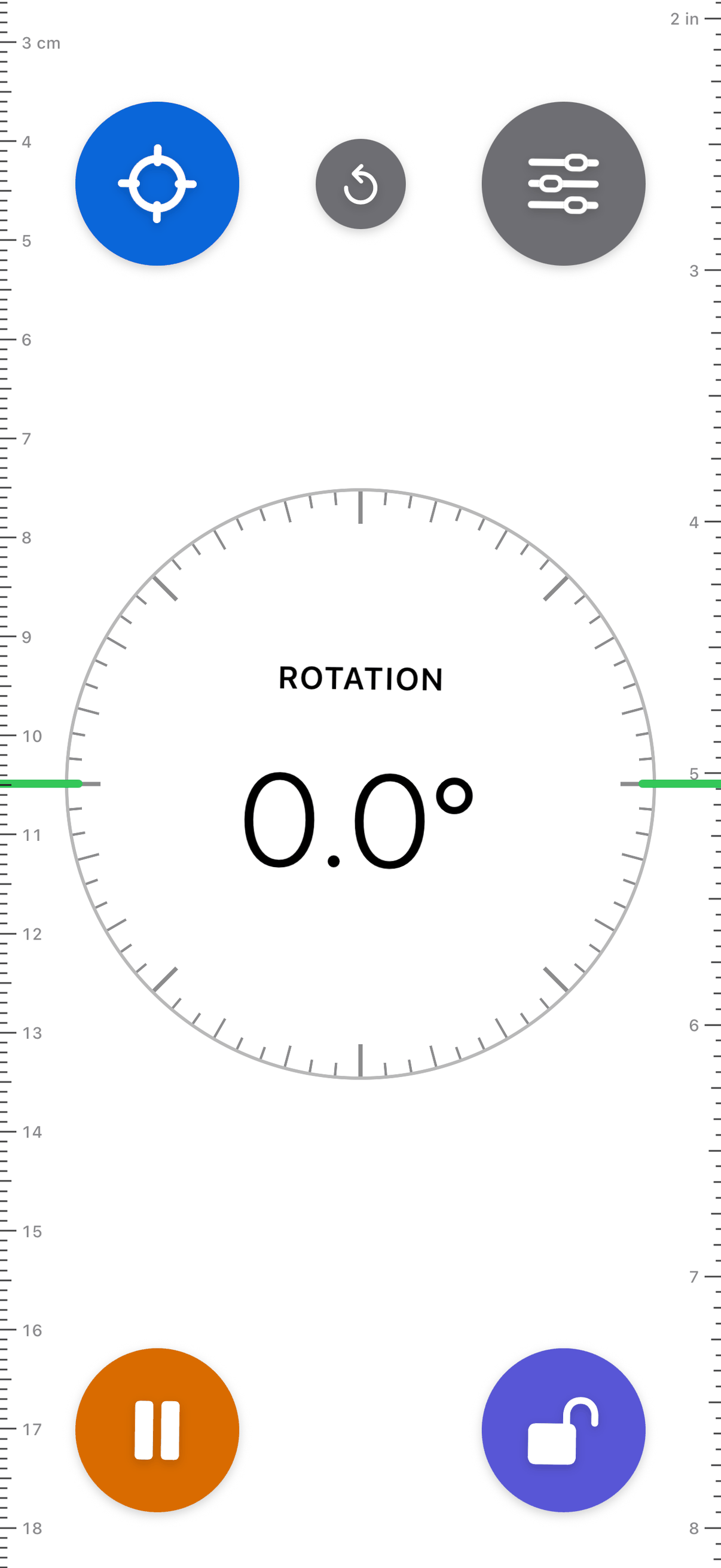
- On an edge. Stand the phone on an edge to read its rotation, −180° to 180°. The horizon line turns green when the edge is level or plumb.
- Flat. Lay it down to read surface tilt, 0° to 90°, with a bubble.
- Lock. Set any angle as zero. Readings then count from it, and the absolute angle shows underneath.
- Hold. Freeze the reading.
Rulers
The level screens have a ruler down each long edge: centimeters on the left, inches on the right. They count from the top edge of the phone itself, not the screen. The scale uses Apple’s published dimensions for each iPhone model.
- Slide. Turn off Lock Ruler to Edge in Settings, then drag a ruler. Keep your finger still and slide the phone along to measure things longer than the phone.
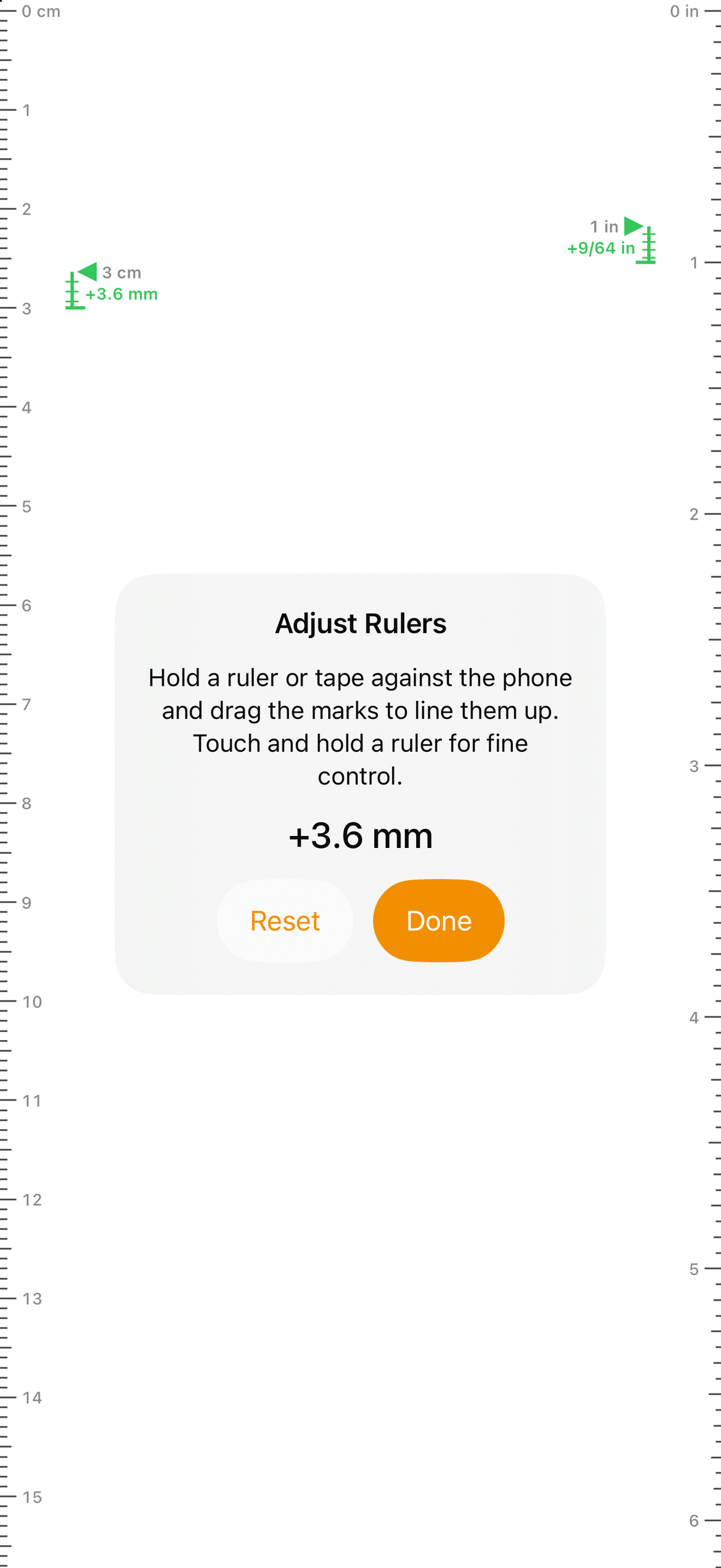
- Adjust. Adjust Rulers lines the marks up with your own ruler or tape, for example when the phone is in a case. Touch and hold a ruler for a magnifier and fine control.
- iPhone Duo. Open the phone and rulers also run along the long edges of the inner display: inches on top, centimeters below. They count from the open phone's left edge.
Target
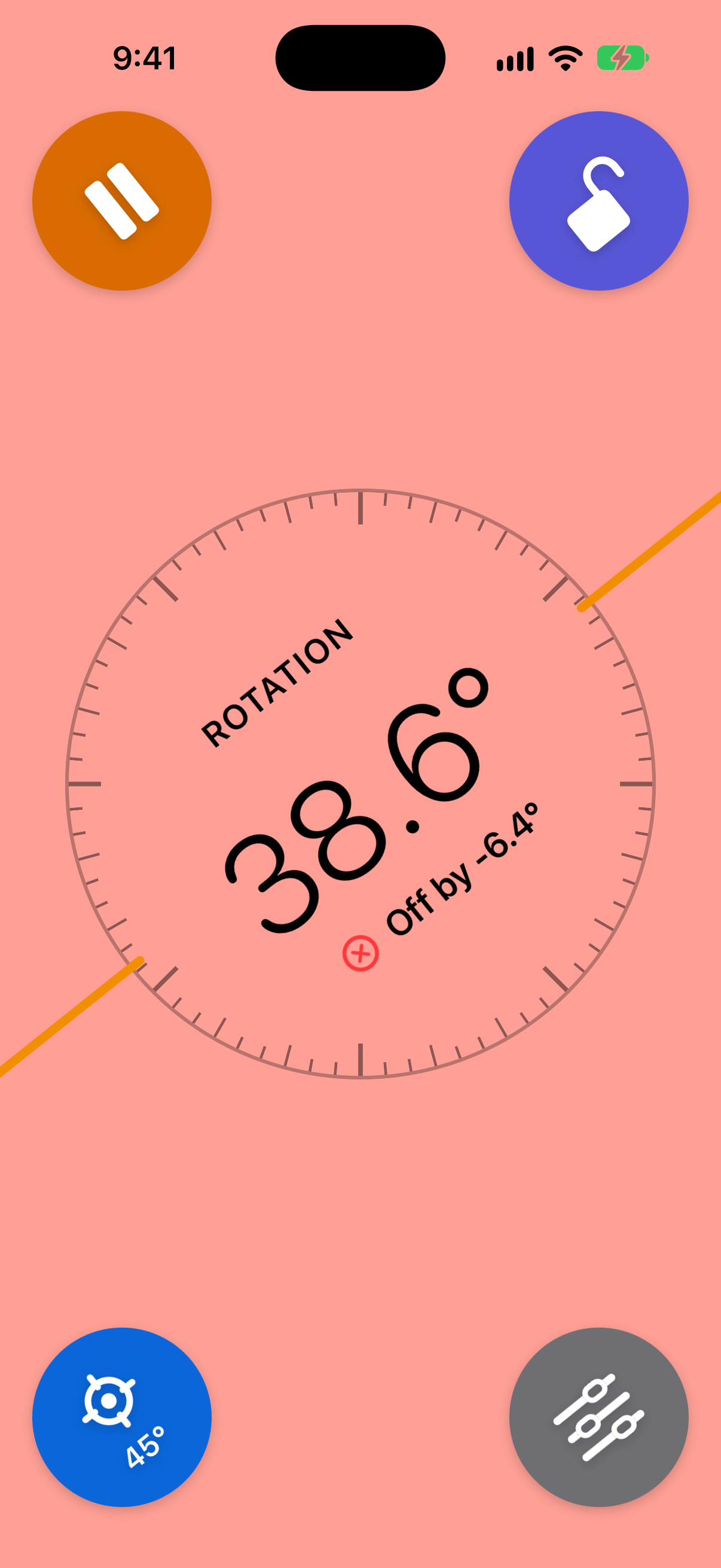
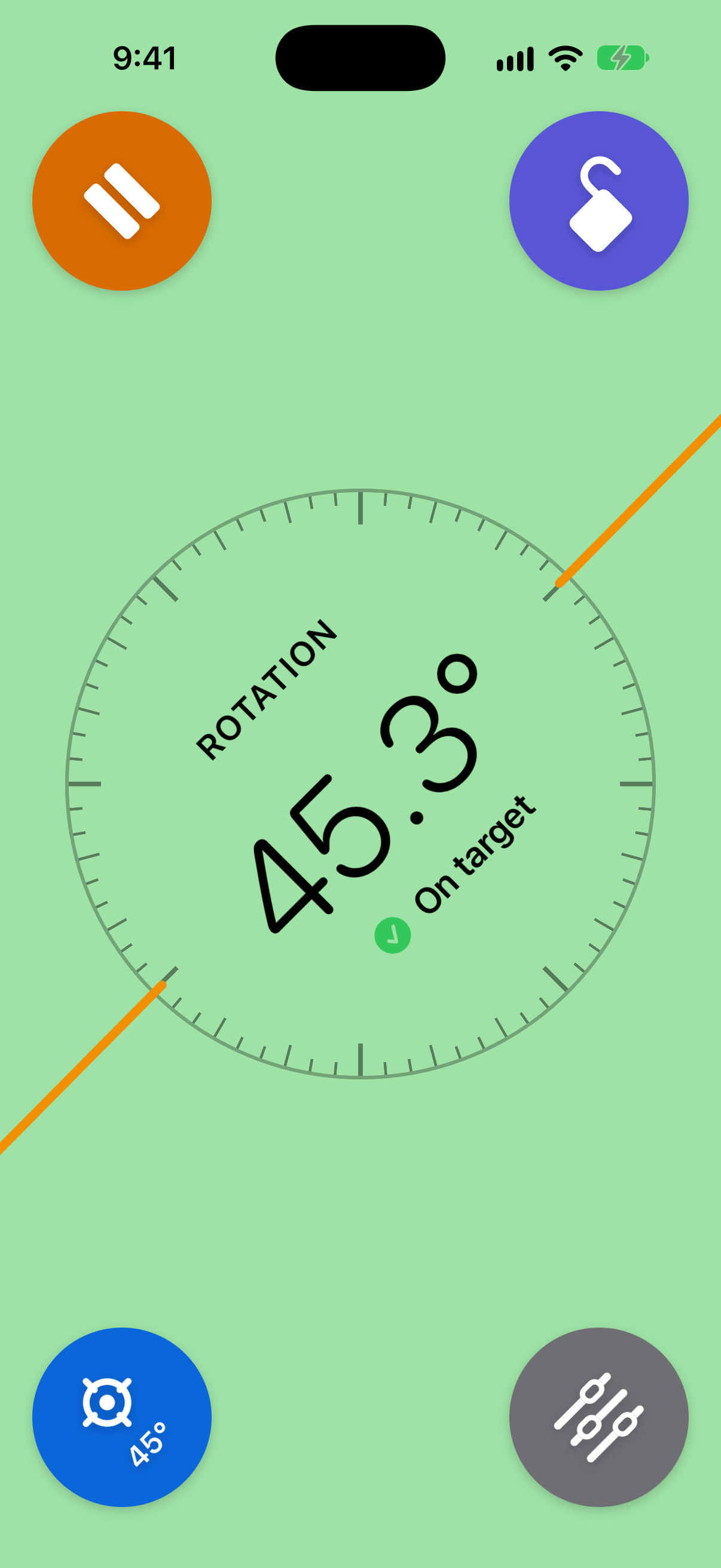
Pick an angle on a dial. The screen is red until you reach it, then green. Works with the hinge, on an edge, or flat.
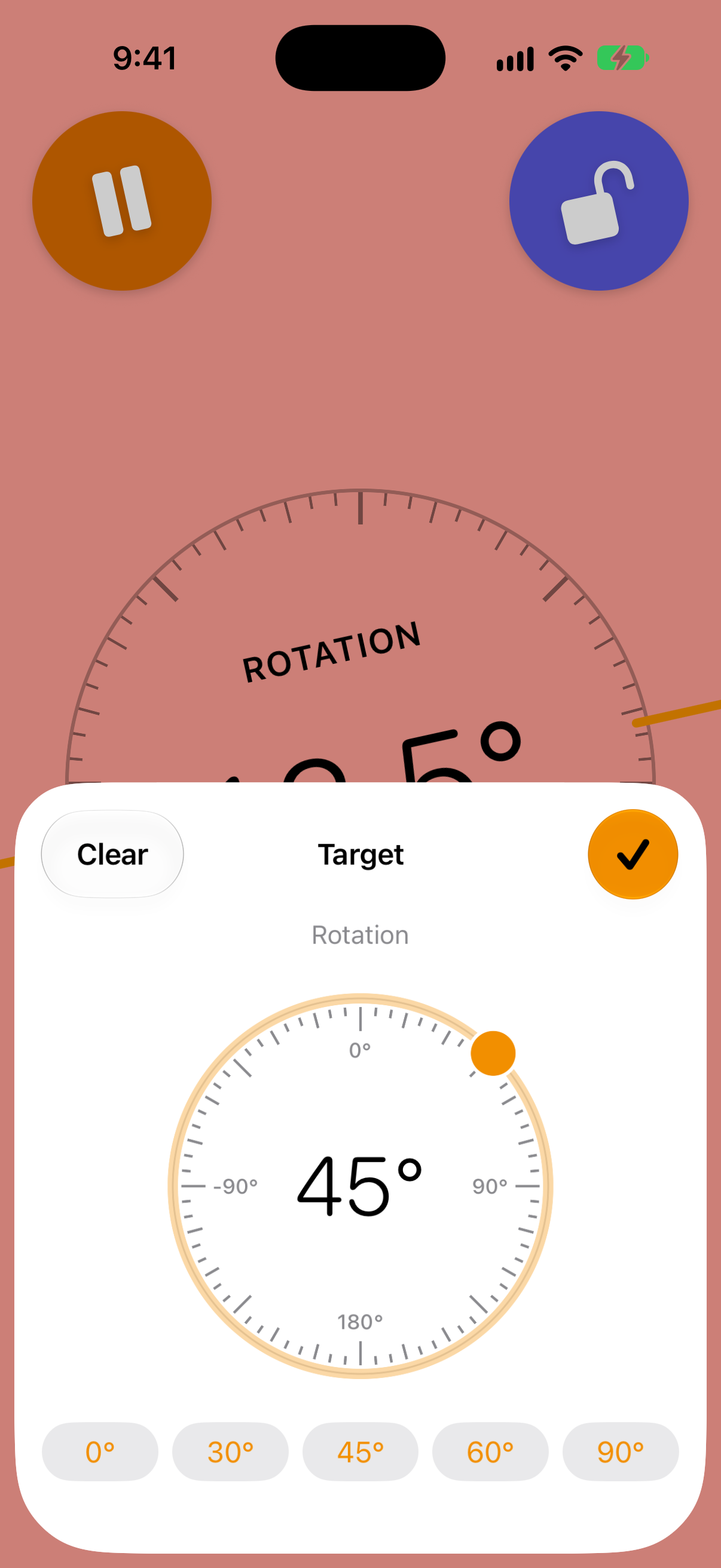
Screenshots are from the iOS Simulator, with angles set for the picture. Tap any screenshot for the full-size image.
How to use
Short steps for each part of the app.
Measure with the hinge (iPhone Duo)
- Open the Duo past 10°.
- Set it into a corner, or lay the two halves against two edges.
- Read the angle. On the open Duo it sits right of the fold.
- Pick Inside or Outside at the top of the right-edge column.
- Tap Hold (pause icon) to freeze the reading. Tap again to release.
Calibrate the hinge
- Unfold the Duo partway or fully, then tap Calibrate (sliders icon).
- Open the phone flat on a table and tap Set as 180° (Open Flat). Or open it inside a square corner and tap Set as 90° Inside (Square Corner).
- “Calibrated” then shows under the reading.
- To undo it, tap Reset Calibration.
Use the level
- Stand the phone on an edge for rotation, or lay it flat for surface tilt. It switches by itself.
- Tap Lock (padlock, bottom right) to set the current angle as zero. Tap it again to unlock.
- Tap Hold (pause icon, bottom left) to freeze the reading.
- A folded Duo works as a level too. Unfold it partway to measure with the hinge.
Use the rulers
- The rulers run down both long edges of the level. They start at the top edge of the phone.
- On an open iPhone Duo, rulers also run along the top and bottom of the inner display, starting at the left edge of the phone. Their reset button appears at the top of the right-hand column.
- To measure past the end of the phone, turn off Lock Ruler to Edge in Settings. Drag a ruler, keep your finger still, and slide the phone along.
- Tap the reset button between Target and Settings, or double tap a ruler, to put it back.
- To match your own ruler or tape, tap Adjust Rulers in Settings and drag a ruler to move the marks, up to 1/4 in either way. Touch and hold for a magnifier. Tap Done to save or Reset to go back to 0.
Set a target
- Tap Target (crosshair, top left on the level).
- Drag the dot around the dial, tap a preset, or tap the number in the middle to type an exact value.
- Tap the checkmark to set it. Clear removes the target.
- The screen is red until the reading is within tolerance, then green.
Settings
- Tolerance: ±0.5°, ±1° (default) or ±2°. How close counts as on target, level or plumb.
- Hinge Reading: inside or outside (iPhone Duo).
- Lock Ruler to Edge: on by default. Turn it off to slide the rulers.
- Adjust Rulers: line the ruler marks up with a real ruler. Reset Offset sets them back to 0.
On the level, Settings is the top-right button. On the hinge gauge it is the Calibrate button.
Requirements
- iPhone with iOS 26 or later.
- The hinge gauge needs iPhone Duo with iOS 27.1 or later.
- On iPad it runs in an iPhone window, without the rulers.
- Works offline. No account.
Readings are approximate. The hinge and motion sensors are not measuring instruments, and the rulers depend on the published size of each model. Check anything that matters with a real protractor, level or ruler.
Details
Accessibility
- Every button and the reading have VoiceOver labels.
- The target dial works with VoiceOver: swipe up or down to change it by 1°, or type a value.
- Reduce Motion stops the level’s spring and bob.
- Light and dark mode.
- Arabic gets a mirrored layout.
12 languages
- English
- العربية
- 简体中文
- 繁體中文
- Nederlands
- Français
- Deutsch
- Italiano
- 日本語
- 한국어
- Português (Brasil)
- Español
Privacy
No account, no network, no analytics, no ads. The app collects no data. Settings stay on your iPhone.
Support
Questions, problems or ideas? Email us and include your iPhone model and iOS version.
spatial@specialglasses.net